Support agent
The support agent is an assistant that sits next to the participant while they negotiate. It lives in the Assistant dock on the right of the negotiation desk, and it can also reach the participant outside the dock: through notifications, the status board under the action panel, highlights and notes on the interface, layout changes and small panels it builds itself.
Every session gets its own agent. The default agent is driven by a language model that calls functions (send a toast, fill the offer, highlight a button, and so on). You can replace it with your own Python class, with or without a language model. The support agent tutorial builds nine such agents step by step.
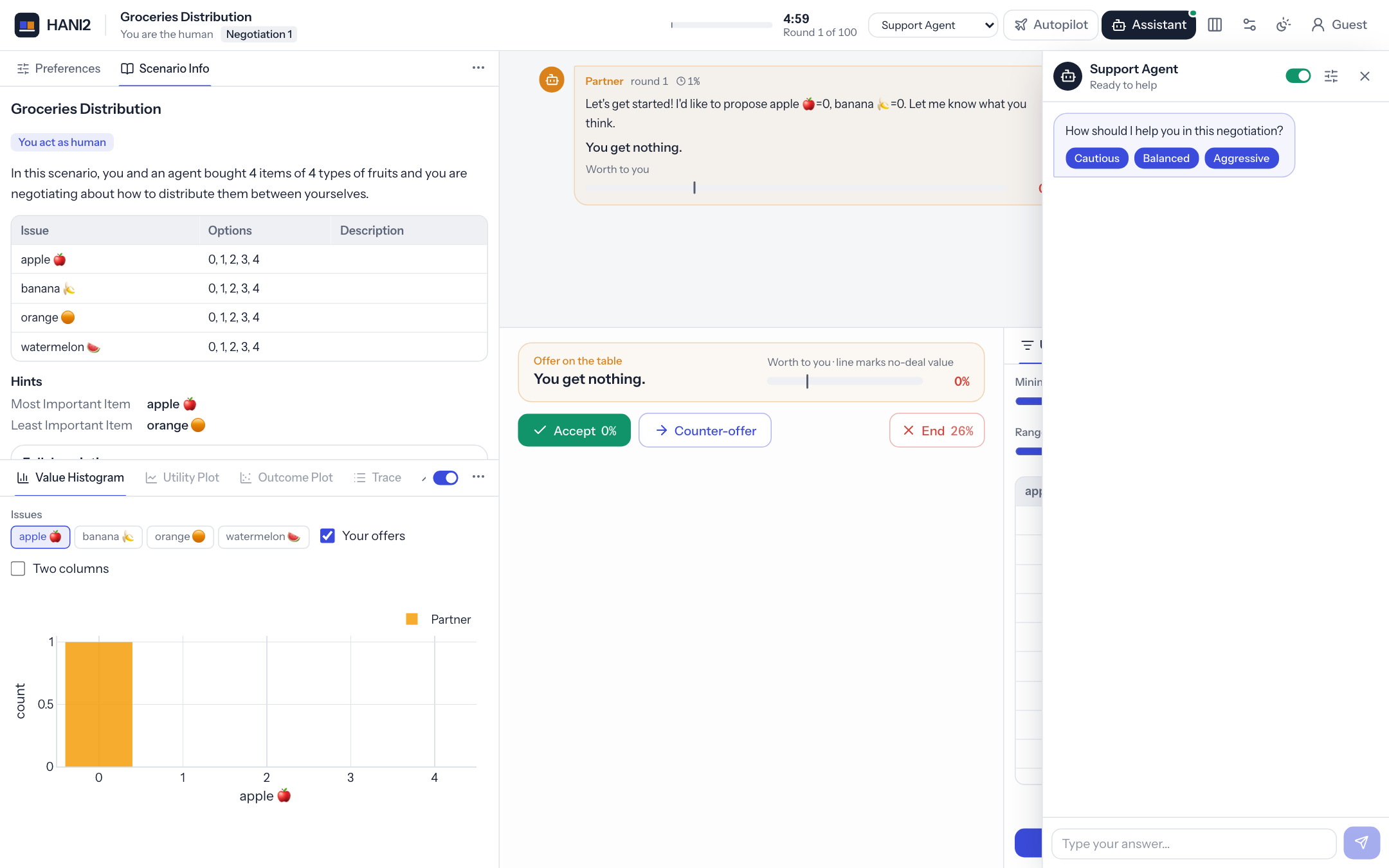
What the agent can do
Depending on the capabilities you grant and the autonomy level, the agent can:
- chat with the participant and ask them questions with answer buttons;
- pop up notifications (toasts) and write a persistent recommendation on the status board;
- show, hide, enable, focus, reorder and move the analysis tools between panes;
- fill the counter-offer fields and write the message to the partner;
- send a counter-offer, accept the partner's offer or end the negotiation, either directly or through the participant's confirmation dialog;
- spotlight parts of the interface (buttons, issues, tool tabs, panes) with a short callout;
- attach notes to issues and other elements;
- switch the layout between the full, simple and focus views, collapse regions and resize the panes;
- show interactive panels built from the same components as tools, and react when the participant clicks their buttons.
- find the participant's tools, read what they show and operate their inputs and buttons;
- add tools to the participant's screen while they negotiate: its own tools or registered ones (see Tools the agent can find, use and add).
It also has a built-in safety net: when the participant edits a draft offer worth less than their reserved value, the agent warns them (see Built-in reserved-value warning).
Turning the agent on
Who gets an agent is decided when a session is created. The first setting found wins:
- The
HANI2_SUPPORT_AGENTenvironment variable.hani2 --support-agent on|off|autoandhani2 --no-support-agentset it for you. - The
modekey insupport_agent_settings.json.
| Value | Who gets the agent |
|---|---|
on |
Everyone (the default). |
off |
Nobody. The Assistant button is not shown. |
auto |
Admins only. |
The environment variable also accepts 1, true, yes and enabled for on; 0, false, no and disabled for off; and admin or admins for auto.
hani2 --support-agent auto       # only admins see the assistant
HANI2_SUPPORT_AGENT=off hani2    # the same switch as an environment variable
With or without a support agent (competitions)
The same installation runs both competition formats; you choose at start-up:
| Competition | Participants get | Start with |
|---|---|---|
| Human-Agent Negotiation (HAN) | no assistant: they negotiate on their own | hani2 --no-support-agent |
| Hybrid Intelligence (HI) | the built-in assistant | hani2 --support-agent on |
| Hybrid Intelligence (HI) | a submitted assistant | hani2 --support-agent team_a.agent:TeamAgent or hani2 --support-agent path/to/team_a.py:TeamAgent |
A value that is not on, off or auto is read as a support-agent class: package.module:Class,
package.module.Class, or a Python file and a class name separated by a colon. The class must
subclass SupportAgent; hani2 checks this before the server starts and stops with an error if the
class cannot be loaded. Passing a class means on: every participant gets that agent. The class goes
into the HANI2_SUPPORT_AGENT_CLASS environment variable, which overrides agent_class in
support_agent_settings.json.
To keep a competition's choice with its data, make it part of an experiment:
Combine it with --opponents to choose the opponent agents the participants face (see
Opponents), for example hani2 --no-support-agent --opponents :template.
hani2 experiment create han-2027 --no-support-agent --no-webmcp --opponents :template
hani2 experiment create hi-2027 --support-agent submissions/team_a.py:TeamAgent --opponents BoulwareTBNegotiator
hani2 --experiment han-2027     # or: hani2 --experiment hi-2027
experiment create --support-agent accepts the same values as the server option and writes them to
the experiment's support_agent_settings.json (mode, and agent_class as an absolute path for a
file). A command-line --support-agent given when starting the server still wins over the
experiment's setting.
Running without a support agent
For studies or competitions where participants must negotiate on their own (for example the Human-Agent Negotiation competition), switch the agent off for everyone. Any of these works:
- start the server with
hani2 --no-support-agent(the same as--support-agent offorHANI2_SUPPORT_AGENT=off); - set Who gets the assistant to Nobody in the admin console (
"mode": "off"); - create a dedicated experiment with
hani2 experiment create han --no-support-agent, which writes{"mode": "off"}to the experiment'ssupport_agent_settings.jsonand turns the autopilot off, then run it withhani2 --experiment han.
With the agent off there is no Assistant button, status board, reserved-value warning from the
agent, or Support Agent autopilot driver, and the WebMCP hani2_ask_assistant tool reports that
the session has no assistant. Add --no-webmcp to the experiment command to also keep browser AI
agents out (see WebMCP).
The participant can switch their agent off and on with the switch in the dock header. A switched-off agent does not answer chat messages, does not speak up on its own and does not react to events. Prolific participants start with the agent switched off; they can still turn it on.
Note
The agent is created once per session. A changed setting or a new agent_class applies to sessions created afterwards. Restart hani2 (sessions live in memory) to pick up changes during development.
Settings
The agent reads support_agent_settings.json from the settings folder (~/negmas/hani2/settings by default, or the active experiment folder). Your file is merged over the bundled defaults, so it only needs the keys you change. You can also edit these settings in the admin console under Support agent. See the configuration reference for how settings files are found.
| Key | Default | Meaning |
|---|---|---|
mode |
"on" |
Who gets the agent: on, off or auto (admins only). |
agent_class |
null |
Your agent class as "module:Class" or "module.Class". null uses the built-in LLM agent. |
provider |
"ollama" |
The litellm provider of the agent's language model (openai, anthropic, ollama, ...). |
model |
"qwen3:4b-instruct" |
The model name for that provider. |
api_key_env |
"OPENAI_API_KEY" |
Name of the environment variable that holds the API key. The key is passed only when the variable is set. |
api_base |
null |
Optional base URL of the model endpoint. |
temperature |
0.3 |
Sampling temperature. |
max_tokens |
2000 |
Maximum tokens per completion. |
max_tool_iterations |
10 |
Maximum model calls per turn. Each call may run several functions. |
autonomy |
"full" |
The admin's autonomy ceiling: suggest, semi or full. |
capabilities |
all true |
The admin grant: one boolean per capability (see below). Missing keys default to true. |
proactive |
all false |
on_negotiation_started, on_action_requested, on_negotiation_ended: whether the agent speaks up unprompted on each event. |
system_prompt |
built in | The default agent's instructions. An empty value restores the built-in prompt. |
The language models page explains providers, API keys and local models with Ollama.
Capabilities
A capability is one thing the agent may do. Each capability that is not effective is removed from the list of functions offered to the language model, and calling it anyway returns an error.
| Key | Label in the UI | What it allows | Functions it unlocks |
|---|---|---|---|
chat |
Chat | Talk in the assistant dock and ask questions | message_user, ask_user |
toast |
Notifications | Pop up short notifications | send_toast |
tool_enable |
Enable tools | Switch analysis tools on or off | set_tool_enabled |
tool_visibility |
Show / hide tools | Show, hide and focus tool tabs | set_tool_visible, focus_tool |
tool_order |
Rearrange tools | Reorder tools and move them between panes | move_tool |
fill_offer |
Fill the offer | Put values in the counter-offer fields | set_offer |
fill_text |
Write the message | Write the message to the partner | set_message_text |
submit_counter |
Send counter-offers | Send a counter-offer | submit_counter_offer |
accept |
Accept | Accept the partner's offer | accept_offer |
end |
End | End the negotiation | end_negotiation |
highlight |
Highlight | Spotlight parts of the interface with a short note | highlight, clear_highlights |
annotate |
Annotate | Attach notes to issues, offers and other elements | annotate |
layout |
Change the layout | Switch views and resize or collapse regions | set_layout |
panels |
Custom panels | Show interactive panels (cards, tables, buttons) | show_panel, close_panel |
tool_add |
Add tools | Add new tools to the participant's screen during the session, and remove the ones it added | add_tool, remove_tool |
tool_use |
Use tools | Read the participant's tools and use their inputs and buttons | read_tool, use_tool |
The agent always has get_negotiation_state and show_on_board. It has list_tools whenever at least one of tool_enable, tool_visibility, tool_order, tool_add or tool_use is effective.
Capabilities gate the functions offered to the model, ToolDispatcher.execute, and the helper methods on SupportAgent: highlight() needs highlight, annotate() needs annotate, set_layout() needs layout, show_panel() needs panels, focus_tool() needs tool_visibility, and toast() needs toast (otherwise the text goes to the chat). A gated helper does nothing and returns {"ok": False, "error": ...}, so a participant's switches always win, even over custom Python agents.
Autonomy
Autonomy decides how far the agent may go on the three negotiation decisions.
| Level | Send a counter-offer | Accept or end |
|---|---|---|
suggest |
Fills the offer and message, then highlights the Send button. The participant sends. | Highlights the button. The participant decides. |
semi |
Sends it. | Opens the accept or end confirmation dialog. The participant approves or cancels. |
full |
Sends it. | Executes immediately. |
The function descriptions given to the model change with the level, so the model knows whether a call will execute, ask for confirmation, or only highlight. Under every level, these functions return an error when it is not the participant's turn.
The participant sees the same three levels in the assistant settings (the sliders icon in the dock header) as Suggest, Semi and Full.
Admin grant and participant choices
Two layers decide what the agent may do:
- The admin grant is the ceiling: the
capabilitiesandautonomysettings. - The participant's choices live in the assistant settings dialog (the sliders icon in the dock header). Under Abilities the participant can switch any granted capability off; under How much may the assistant do? they can pick a lower autonomy level.
The effective capability set is the intersection: a capability is effective only if the admin granted it and the participant has not switched it off. Capabilities the admin did not grant are not listed, and autonomy levels above the admin's are disabled. The effective autonomy is the lower of the two levels. Both start equal to the admin grant. The same dialog has Clear the conversation, which empties the chat and resets the model conversation.
In code, self.capabilities is a CapabilityState:
from hani2.support_agent import Autonomy, Capability, CapabilityState

c = CapabilityState({"chat": True, "accept": True, "end": False}, "semi")
c.has(Capability.CHAT)                 # True
c.set_user_capability("end", True)
c.has("end")                           # False: users cannot widen the grant
c.set_user_autonomy("full")
c.autonomy                             # Autonomy.SEMI: the lower level wins
c.autonomy_allows_execute(Capability.ACCEPT)   # False (needs full)
c.autonomy_allows_confirm(Capability.ACCEPT)   # True (semi or higher)
Proactive messages
The agent can speak without being asked when one of three events happens:
| Event | When |
|---|---|
negotiation_started |
The participant pressed Start and the negotiation is running. |
action_requested |
It is the participant's turn. |
negotiation_ended |
The negotiation finished (agreement, timeout or someone ended it). |
Turn each one on in proactive (for example {"proactive": {"on_action_requested": true}}). On an enabled event, the default agent asks proactive_note(event) for a short instruction, adds the current negotiation state, and runs one model turn. If the agent is already busy with another turn, the event is skipped.
The participant chooses where the agent's unprompted replies appear, under Unprompted messages appear as in the assistant settings: Notifications (the default), Status board or Chat. Replies to the participant's own chat messages always go to the chat.
Built-in reserved-value warning
When the participant edits the counter-offer on their turn and the draft is worth less than their reserved value, the agent:
- shows a warning toast with a Discuss with the assistant button;
- adds a warning note to the offer editor (if
annotateis effective); - writes a recommendation on the status board.
It warns once until the draft is fixed, and again on the next turn. This happens in on_draft_changed; override that method to change or remove it.
Attribution and logging
Every function the agent runs through its dispatcher is logged to the event log as a support_agent event with {"actor": "agent", ...} and the function name as the action (for example set_offer, accept_executed, accept_confirm_requested or recommend_accept). Chat messages the participant sends to the agent are logged as support_agent events with actor human and action user_message.
The first logged agent action marks the session, and every negotiation result saved afterwards has support_agent set to true in results.csv. A negotiation where autopilot was used has autopilot set to true. See Studies and results for the full results format.
Helper calls made directly on SupportAgent (such as self.highlight(...) or self.post(...)) are not logged this way. Call self.dispatcher.execute(name, args) when you want the action attributed.
Writing your own agent
Subclass SupportAgent, put the module on Python's path, and point agent_class at it:
# my_agent.py
from hani2.support_agent import SupportAgent


class MyAgent(SupportAgent):
    name = "Coach"

    def handle_user_message(self, text: str) -> None:
        ctx = self.context()
        self.post(f"The partner's offer is worth {ctx['partner_offer_utility']:.0%} to you.")
agent_class accepts module:Class or a dotted package.module.Class. The class must subclass SupportAgent. If it cannot be imported, is not a subclass, or its constructor raises, the server prints a warning and uses the default agent instead:
[hani2] WARNING: could not load custom agent_class 'my_agent:MyAgent' (No module named 'my_agent'); using the default agent
A ready-to-copy starting point lives in examples/agent_template in the source repository (my_agent.py, settings.example.json and an offline test).
Threading
Agent code runs in worker threads, never on the server's event loop. It may block on a language model or on ask_user() without freezing the interface. Use run_on_doc(fn) to read or change session state atomically; it runs fn under the session lock and returns its result. Hold it briefly.
Methods to override
| Method | Called when | Default |
|---|---|---|
build_system_prompt() -> str |
At construction | Returns settings["system_prompt"]. |
make_dispatcher() -> ToolDispatcher |
At construction | Builds dispatcher_class(self). |
handle_user_message(text) |
The participant sends a chat message | Answers a pending question, otherwise runs a model turn with the current state attached. |
on_event(event_name, nmi=None) |
negotiation_started, action_requested, negotiation_ended |
Runs autopilot turns, then proactive turns if enabled. Call super().on_event(...) if you still want those. |
proactive_note(event_name) -> str \| None |
Before a proactive turn | A short instruction per event. Return None to stay silent. |
on_draft_changed(draft) |
The participant edits the counter-offer | The reserved-value warning. |
on_panel_action(panel_id, action, payload) |
A button in one of the agent's panels is clicked | Sends (panel <id>) clicked <action> to the model. |
_complete(tools, force_action=False) -> dict |
Each model call | One litellm.completion. Replace it to use another backend; return {"role": "assistant", "content": ..., "tool_calls": [...]}. |
on_event receives the participant's negotiator interface (nmi) when a negotiation exists, or None.
Class attributes
tools: tool classes (or"module:Class"/"path/to/file.py:Class"strings) this agent brings. They stay hidden until the agent adds them.
| Attribute | Default | Meaning |
|---|---|---|
name |
"Support Agent" |
The name shown in the dock header and on chat messages. |
dispatcher_class |
ToolDispatcher |
The dispatcher class. Set it to your subclass to add functions. |
Helpers you can call
| Helper | What it does |
|---|---|
post(text, user=None) |
Post a chat message (markdown) from the agent. |
toast(message, level="info") |
Pop up a notification. level is info, success, warning or error. |
show_on_board(text, append=False) |
Write markdown to the status board, replacing or appending. |
message_user(text, channel="chat") |
Reach the participant now on chat, toast or board. |
ask_user(question, options=None, timeout=180.0) -> str \| None |
Ask a question in the chat, with optional answer buttons, and block until the participant answers by button or by typing. Returns None on timeout, under autopilot, or if another question is pending. |
highlight(target, message=None, style="pulse", duration=None) |
Spotlight an element (see Highlight targets). |
clear_highlights(target=None) |
Remove one highlight or all of them. |
annotate(target, text, kind="info") |
Attach a note to an element. text=None removes it. |
set_layout(view=..., sizes=..., collapsed=...) |
Change the layout (see Layout). |
focus_tool(name) |
Bring a tool's tab to the front, showing and enabling it. |
show_panel(panel_id, title, components, placement="assistant") |
Show or replace a panel made of hani2.tools.ui components. |
close_panel(panel_id=None) |
Close one panel, or all of them. |
context() -> dict |
The live negotiation snapshot (see The context snapshot). |
run_on_doc(fn, timeout=30.0) |
Run fn atomically with respect to the session state. |
set_user_enabled(on) |
Switch the agent on or off, like the dock switch. |
set_proactive_delivery(channel) |
Set the delivery of unprompted replies: toast, board or chat. |
warn_if_draft_below_reserved() |
The reserved-value warning, callable from your own on_draft_changed. |
Tool helpers (each checks the capability shown):
| Helper | Capability | Does |
|---|---|---|
available_tools() |
none | Tools add_tool accepts by name: [{name, description, pane, hint}]. |
toolbox() |
none | The same, as a name-to-class mapping. |
add_tool(tool, pane=None, at_front=True, focus=True) |
tool_add |
Adds a tool by name, class or instance. |
remove_tool(name) |
tool_add |
Removes a tool added during the session. |
read_tool(name) |
tool_use |
{"ok", "tool", "text"}: what the tool shows, as text. |
use_tool(name, inputs=None, action=None, payload=None, row=None) |
tool_use |
Operates the tool; returns what it shows afterwards. |
Attributes
| Attribute | Meaning |
|---|---|
session_state |
The session's state dictionary. Holds actions, tool_controller, user, user_path, scenario, mechanism, human_ufun and more. |
session |
The NegotiationSession object. |
settings |
The loaded support_agent_settings.json. |
capabilities |
The CapabilityState (admin grant and participant choices). |
dispatcher |
The ToolDispatcher instance. |
messages |
The model conversation, starting with the system message. |
user_enabled |
Whether the participant has the agent switched on. |
autopilot |
Whether the agent is driving the autopilot. |
busy |
Whether a model turn is running. |
user_proactive_delivery |
Where unprompted replies go: toast, board or chat. |
The function dispatcher
ToolDispatcher holds the functions the language model may call. Each entry has an optional capability gate, a handler that takes the argument dictionary and returns a JSON-serialisable dictionary, and a callable that returns the function schema.
| Member | Purpose |
|---|---|
ToolDispatcher(runtime) |
runtime is the agent. Available as self.runtime. |
register_extra_tools() |
Override this hook to add your functions. Called at the end of __init__. |
register(name, handler, schema, capability=None) |
Add or replace a function. schema is a zero-argument callable returning the schema. capability=None means always available. |
schemas() -> list[dict] |
The schemas of the currently effective functions, as sent to the model. |
execute(name, args) -> dict |
Run a function by name. Returns {"ok": False, "error": ...} for unknown names or capabilities that are not effective. |
caps |
Shortcut for runtime.capabilities. |
ss |
Shortcut for runtime.session_state. |
Build schemas with make_function_schema(name, description, properties, required), which returns an OpenAI-style function tool:
from hani2.support_agent import SupportAgent, ToolDispatcher, make_function_schema
from hani2.support_agent import Capability


class MyTools(ToolDispatcher):
    def register_extra_tools(self) -> None:
        self.register(
            "suggest_price",
            self._suggest_price,
            lambda: make_function_schema(
                "suggest_price",
                "Fill the Price field with a value.",
                {"price": {"type": "number"}},
                ["price"],
            ),
            capability=Capability.FILL_OFFER,
        )

    def _suggest_price(self, args: dict) -> dict:
        return self.runtime.run_on_doc(lambda: self.ss["actions"]["set_offer"]({"Price": args["price"]}))


class MyAgent(SupportAgent):
    dispatcher_class = MyTools
Built-in functions
| Function | Arguments | Gate |
|---|---|---|
get_negotiation_state |
none | always |
show_on_board |
content (markdown or HTML), append |
always |
list_tools |
none (returns the tools and, with tool_add, can_add: tools it may add) |
any of tool_enable, tool_visibility, tool_order, tool_add, tool_use |
send_toast |
message, level (info, success, warning, error) |
toast |
message_user |
text, channel (chat, toast, board) |
chat |
ask_user |
question, options |
chat |
set_tool_enabled |
name, enabled |
tool_enable |
set_tool_visible |
name, visible |
tool_visibility |
focus_tool |
name |
tool_visibility |
move_tool |
name, position (0-based), pane (upper, lower, side) |
tool_order |
set_offer |
outcome (issue name to value) |
fill_offer |
set_message_text |
text |
fill_text |
submit_counter_offer |
outcome, message (both optional) |
submit_counter |
accept_offer |
none | accept |
end_negotiation |
none | end |
highlight |
target, message, style (pulse, glow, spotlight), duration (seconds) |
highlight |
clear_highlights |
target |
highlight |
annotate |
target, text, kind (info, success, warning, tip) |
annotate |
set_layout |
view (full, simple, focus), collapsed, sizes |
layout |
show_panel |
panel_id, title, markdown, table (list of row objects), buttons (label, action), placement (assistant, side, modal) |
panels |
close_panel |
panel_id |
panels |
read_tool |
name |
tool_use |
use_tool |
name, inputs (input name to value), action (button or table action), row (table row index), payload |
tool_use |
add_tool |
name (from can_add), pane, focus |
tool_add |
remove_tool |
name |
tool_add |
Tool names are matched case-insensitively, and a partial name also matches ("utility" finds Utility Plot). Issue names in set_offer are matched the same way, and values are checked against the issue; unknown issues and invalid values are reported back in unrecognised.
Tools the agent can find, use and add
The participant's tools are part of the agent's toolkit. A tool written for people works for the agent without extra code.
- Find.
list_toolslists every tool with its description, pane and state. Withtool_addit also returnscan_add: tools the agent may put on the screen now. - Read.
read_tool(name)returns what the tool shows as text: its description andagent_hint, numbers, the first rows of tables, a summary of each chart, and its inputs (with their options and ranges) and buttons. - Use.
use_tool(name, inputs=..., action=..., row=...)sets inputs, then presses a button or picks a table row, exactly as the participant would, and returns what the tool shows afterwards. Values from the model are converted to what each input expects ("80"becomes80for a slider). - Add.
add_tool(name)puts a tool on the participant's screen for the rest of the session. It catches up on the scenario and on a negotiation that is already running, becomes the front tab of its pane, and its tab carries a small assistant mark.remove_tool(name)removes a tool that was added this way; built-in and configured tools can only be hidden.
What the agent may add. By name, the agent can add only tools from its toolbox: the classes
in its tools class attribute, the toolbox setting in support_agent_settings.json, and
registered tools the participant does not have yet. A tool that is admin-only, not offered to
guests, or listed in tools.disabled stays out of reach. The model can never pass an import path,
so a partner's message cannot make it load code.
Permissions carry through tools. While the agent operates a tool, anything the tool then does
to the negotiation obeys the agent's own capabilities and autonomy: a tool button that fills the
offer needs fill_offer; one that sends, accepts or ends needs submit_counter, accept or
end and an autonomy level that allows it. When the participant presses the same button, it works
as usual.
Tools that wait for the agent. A tool with timing = "agent" never appears on its own; it
waits in the toolbox until an agent adds it. Use it for tools that only make sense at a particular
moment.
From Python, the same abilities are the helpers available_tools(), add_tool(),
remove_tool(), read_tool() and use_tool() (see Helpers you can call
and tutorial level 10).
Hybrid Intelligence: submitting tools and agents
Teams can contribute in three ways, and the organisers start HANI2 with the matching options:
| A team submits | Start with | What happens |
|---|---|---|
| Only a tool | hani2 --support-agent on --tools team.py:TeamTool |
The built-in agent finds the tool with list_tools, reads it and uses it. With timing = "agent", it also decides when to add it. |
| A support agent | hani2 --support-agent team.py:TeamAgent |
The team's agent runs for every participant and can use every tool the participant has. |
| A support agent with its own tools | hani2 --support-agent team.py:TeamAgent (tools listed in TeamAgent.tools), or add --tools team_tools.py:A,team_tools.py:B |
The agent adds its tools where and when it wants. |
--tools takes package.module:Class or path/to/file.py:Class, separated by commas, and checks
that every class loads before the server starts. hani2 experiment create NAME --tools ... saves
them in the experiment (tools.extra in its env.json).
The action API
session_state["actions"] is a dictionary of callables shared by the agent and tools. Call them through run_on_doc from agent code.
| Key | Signature | What it does |
|---|---|---|
set_offer |
(outcome: dict) -> dict |
Fill the counter-offer fields. Returns ok, applied and unrecognised. |
set_text |
(text: str) -> dict |
Write the message to the partner. Fails when the participant's text is disabled. |
get_offer |
() -> dict |
The current draft offer. |
get_partner_offer |
() -> tuple \| None |
The partner's offer on the table, as an outcome tuple. |
can_act |
() -> bool |
Whether it is the participant's turn. |
context |
() -> dict |
The context snapshot below. |
highlight |
(key, message=None, **kw) -> dict |
Spotlight an element. |
accept |
(confirm=True) |
With confirm=True, open the accept confirmation dialog; with False, accept now. |
end |
(confirm=True) |
The same for ending the negotiation. |
reject_counter |
() -> dict |
Send the current draft offer and message as a counter-offer. |
The context snapshot
context() (and the context action, and get_negotiation_state) returns:
| Key | Meaning |
|---|---|
issues |
One entry per issue: name, plus min and max for numeric ranges or values for discrete issues. |
partner_offer |
The partner's offer on the table as {issue: value}, or None. |
partner_offer_utility |
Its utility for the participant, or None. |
partner_message |
The text that came with it, or None. |
draft_offer |
The participant's current draft. |
draft_offer_utility |
Its utility, or None while a field is empty. |
draft_message |
The draft message to the partner. |
reserved_value |
The participant's value on disagreement. |
is_my_turn |
Whether the participant may act now. |
phase |
idle, ready, starting, running, ended, questionnaire or finished. |
step |
The current negotiation step. |
n_steps |
The step limit, if any. |
relative_time |
Progress from 0 to 1. |
time_left |
Seconds left, if there is a time limit. |
history |
The last offers (up to 14 entries), each with by (you or partner), offer, message and utility. |
result |
The result after the negotiation ends, otherwise None. |
tools |
The names of the session's tools. |
Utilities are the participant's own and are never shown to the partner. The default system prompt tells the model not to reveal them in messages.
Interface control
Highlight targets
highlight and annotate take a target name. These are defined in hani2.session.ANCHORS:
| Target | Element |
|---|---|
accept |
The Accept button |
reject |
The Reject / counter-offer button |
end |
The End negotiation button |
send |
The Send counter-offer button |
offer |
The counter-offer editor |
message |
The message box |
partner_offer |
The partner's current offer |
history |
The negotiation history |
history:last |
The latest history entry |
timer |
The countdown / progress area |
issue:<name> |
One issue field in the counter-offer editor |
tool:<name> |
A tool tab |
pane:upper, pane:lower, pane:side |
A tool pane |
Highlight styles are pulse (the default), glow and spotlight, which dims everything else. With a duration in seconds the highlight fades; without one it stays until the participant acts or dismisses it. Highlights are cleared whenever the participant acts and when a new scenario loads. A new highlight on the same target replaces the old one.
Notes added with annotate stay until removed (text=None) or until a new scenario loads. Their kind is info, success, warning or tip.
Layout
set_layout accepts:
view:full(all panes),simple(history, offer and one tools area) orfocus(only the negotiation; tools hidden);collapsed: a list of regions to collapse, any oftools,history,side;sizes: fractions such as{"tools": 0.4}(the width share of the tools column).
Panels
A panel is a titled card made of hani2.tools.ui components. placement decides where it appears:
| Placement | Where |
|---|---|
assistant |
Inside the assistant dock, under the chat. The dock opens automatically. |
side |
Above the action panel. |
modal |
A dialog over the page. |
Showing a panel with an existing panel_id replaces it. The participant can close any panel with its close button. Buttons in a panel call on_panel_action(panel_id, action, payload) with the button's action and payload. Input components (sliders, selects and so on) render in panels but their changes are not sent back to the agent; use buttons for interaction.
from hani2.tools import ui

self.show_panel(
    "plan",
    "Your plan",
    [
        ui.markdown("Hold firm on **Price** for two more rounds."),
        ui.row(ui.button("Sounds good", "ok", variant="primary"), ui.button("Change it", "change")),
    ],
    placement="side",
)
How a model turn works
When the default agent handles a chat message, a proactive event or a panel click, it:
- appends the message to its conversation, with the current context snapshot as JSON;
- calls the model with the effective function schemas;
- runs every function the model calls and appends the results;
- repeats until the model answers without calling a function, or
max_tool_iterationsis reached.
The final text goes to the chat (or, for proactive turns, to the participant's chosen delivery channel). Only one turn runs at a time; a chat message that arrives during a turn gets the reply "I'm still working on the previous request". For Ollama models, function calls and results are flattened into plain text messages, because Ollama's chat format drops them.
Related pages
- Autopilot lets the agent make every decision.
- Build a support agent walks through nine example agents.
- Python API has the generated reference for
hani2.support_agent.